Seven Hills to Central, the same two stops, typed out again every morning. Save the trip once and tomorrow you open KRAIL, tap it, and the next services are already on your screen.
Tap the star
Search your trip the normal way. When the times come up, tap the star at the top. That is it, the trip is saved.
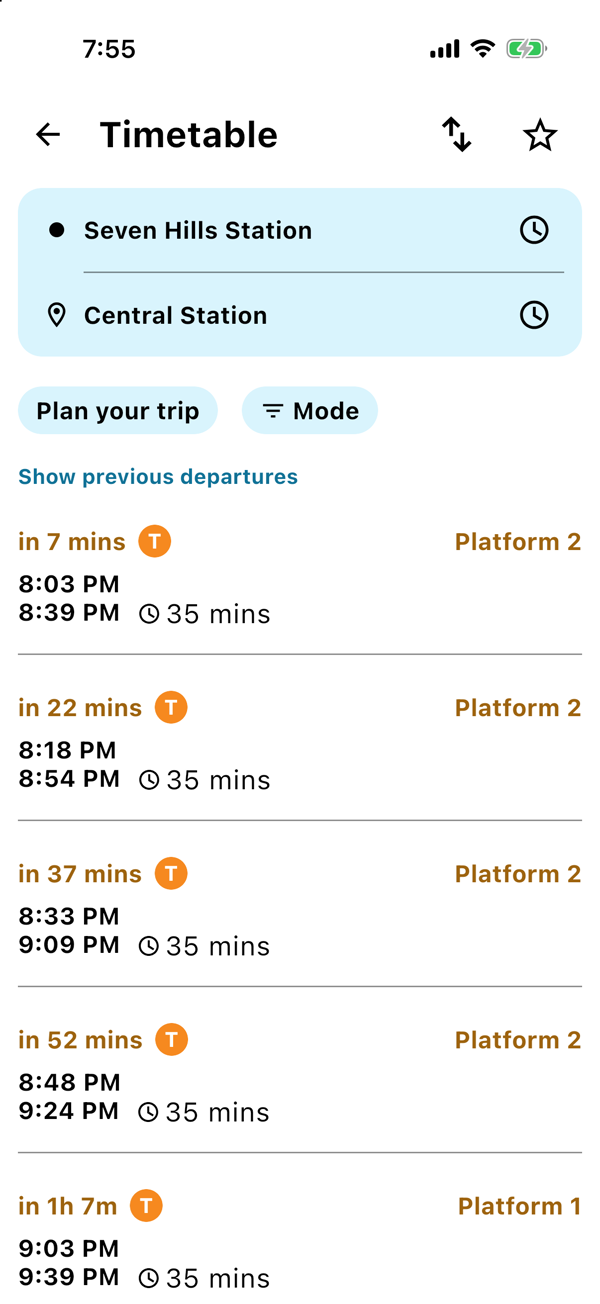
Until you have saved your first trip, KRAIL even offers: a little tile pops up asking Save this trip? with the line "Your trip will be one tap away on the home screen." Tap Save and you are done.
Your trips, right on the home screen
Every trip you save shows up under Saved Trips when you open the app. Tap one and you jump straight to the live times for that trip. No searching, no typing, no scrolling.
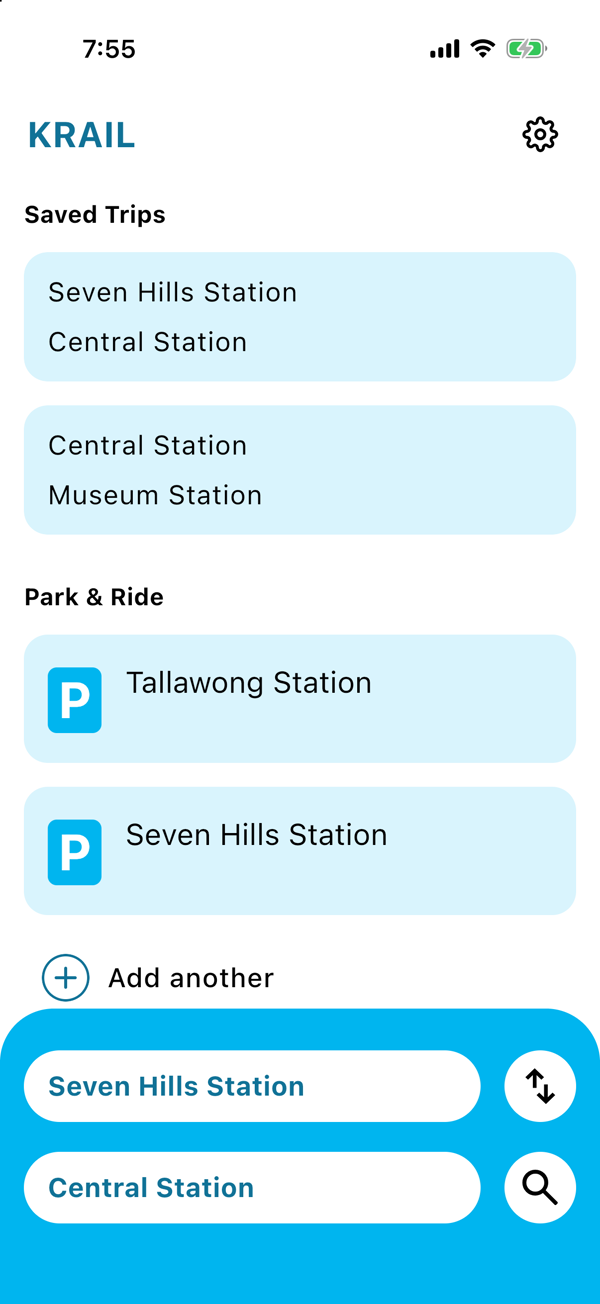
Want your morning trip at the top? Long press any saved trip and the cards start to wiggle. Drag them into the order you like, tap the cross on any you no longer need, then tap Done. The order stays put.
Call your stops Home and Work
Stop names can be a mouthful. With labels, "Parramatta Station" can simply be Work.
KRAIL comes with Home and Work ready to go. Label both stops of a trip and your saved trip card reads "Home to Work" instead of two long station names. Make your own labels too, like Gym or Mum's place, and rename or remove your own labels whenever you like.
Good to know
- Save as many trips as you want. There is no limit.
- Everything is saved on your phone.
- Tap into a saved trip to see live times. The card on the home screen is your shortcut, the live times are one tap behind it.
- Save a trip from a station with a Park & Ride and that station's live parking turns up on your home screen too, without you adding it.
Save your trip once.
The next departure is one tap away, every morning.